
Prerna Portal Common Errors and Fixes Latest Update (2026)
The Prerna Portal is a key platform for managing educational data in Uttar Pradesh. While it helps teachers, students, and school administrators stay organized and connected, users may sometimes encounter errors or issues when using the portal.
This guide highlights the most common Prerna Portal errors and provides easy fixes to ensure smooth usage of the platform.
Login Issues
Error: Unable to Log In
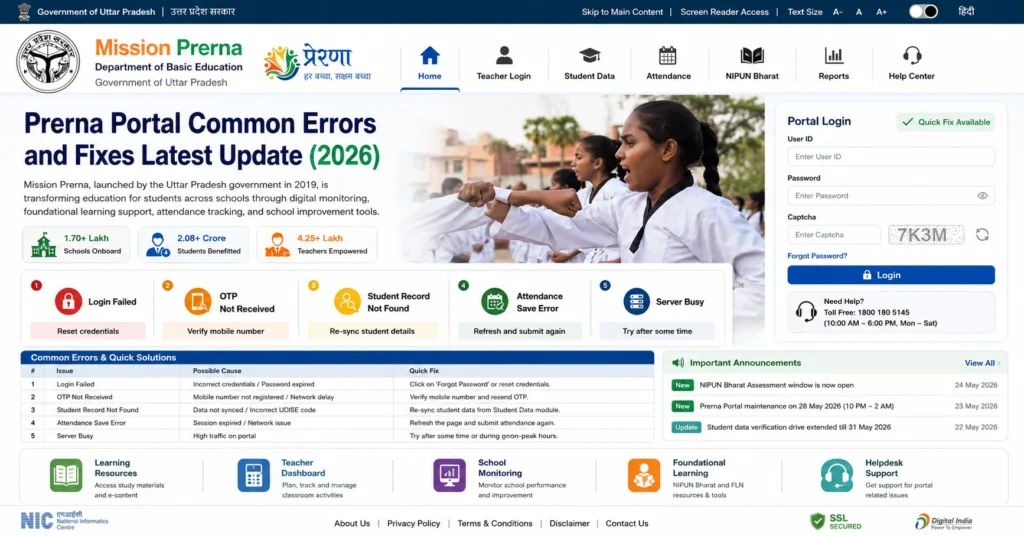
This is one of the most common problems users face. The issue could stem from incorrect credentials, account issues, or system errors.
Fixes:
Ensure that you are using the correct username and password. Double-check for any typos or capitalization errors.
If you’ve forgotten your password, use the “Forgot Password” option to reset it.
Sometimes, outdated data in your browser’s cache can cause login issues. Clear the cache and cookies in your browser settings and try logging in again.
If the issue persists, try using another browser or device.
Tip:
Always keep your login credentials secure and avoid sharing them with anyone.
You can also read: Prerna Portal Latest Teacher Tasks Explained Update (2026)
Data Not Saving or Updating
Error: Student/Teacher Data Not Saving
Sometimes, after entering data into the portal (such as student attendance or teacher information), the system might not save or update the records correctly.
Fixes:
Tip:
Always check that all required fields are filled before submitting data.
Error Messages When Uploading Files
Error: “File Upload Failed”
This error occurs when trying to upload photos, documents, or other files to the portal.
Fixes:
Check File Size:
Ensure the file is under the 2 MB size limit. If it’s too large, use an online tool to compress or resize it.
Supported File Formats:
Verify that the file is in a valid format like JPEG, PNG, or PDF. Files in unsupported formats won’t upload.
File Name Issues:
Sometimes, special characters in the file name (like #, %, or &) can cause upload issues. Rename the file and try uploading again.
Tip:
If uploading photos of school facilities, make sure they are clear, well-lit, and meet the required standards.
Page Not Loading or Portal Downtime
Error: “Page Not Found” or Slow Loading
This issue occurs when certain pages on the portal aren’t loading, or the portal itself is slow to respond.
Fixes:
Check the URL:
Ensure you’re using the correct official URL: https://prernaup.in. Any variations could indicate you are on a fake or incorrect portal.
Refresh the Page:
Sometimes the page may not load properly. Refresh the page or try reloading it by pressing Ctrl + R (or Command + R on Mac).
Clear Cache and Cookies:
Clearing your browser’s cache and cookies can help resolve page loading issues.
Try a Different Browser:
Use another browser or device to check if the issue is browser-related.
Tip:
If the portal is down for maintenance, wait for a while and try again. Official portals will typically notify users if the site is under maintenance.
Missing or Incorrect Reports
Error: Missing Reports or Incorrect Data in Reports
If your attendance or progress reports are missing, incomplete, or incorrect, this can cause issues for teachers and school administrators.
Fixes:
Verify Data Entry:
Double-check that all data (attendance, progress, assignments) was entered correctly and completely before generating reports.
Check for Pending Updates:
Sometimes, reports may not show the latest data due to pending updates. Ensure all student data and progress reports are updated first.
Refresh or Regenerate Reports:
Try refreshing the page or regenerating the report to see if it reflects the correct data.
Tip:
Always submit reports regularly to avoid last-minute errors or missing data.
Photo Upload Problems (School Facilities)
Error: “Photo Upload Failed” for Facilities
If you’re having trouble uploading photos of school facilities like classrooms, toilets, or playgrounds, the issue may be related to the file format, size, or internet connection.
Fixes:
Tip:
Regularly check the photo upload requirements and resize your images to meet the portal’s standards.
Accessing Specific Sections (Restricted Access)
Error: “Access Denied” for Certain Sections
If you see an “Access Denied” message while trying to access certain sections of the portal (like Mid-Day Meal data or school reports), it could be due to permissions or role-based access restrictions.
Fixes:
Check Role Permissions:
Verify that you have the appropriate access level for the section you’re trying to view. For example, some areas may only be accessible by school administrators or district-level officials.
Contact IT Support:
If you believe you should have access to a section, contact your school’s IT support or the BEO for assistance.
Tip:
Ensure your user role is correctly set in the system, especially if you’re a new user.
General Technical Glitches
Error: “System Error” or “Something Went Wrong”
Sometimes, users may encounter general errors such as system glitches or unresponsive features on the portal.
Fixes:
Tip:
Always check for system maintenance notices or updates on the portal, as this may cause temporary issues.
FAQs
Conclusion
The Prerna Portal is a valuable tool for teachers, students, and school administrators in Uttar Pradesh. While occasional errors and issues are inevitable, understanding the common problems and knowing how to fix them will help you navigate the portal more efficiently.
By following the fixes mentioned in this guide, you can quickly resolve most common issues and ensure smooth usage of the Prerna Portal.
If you face unresolved issues, always feel free to reach out to the Prerna Portal Helpdesk or your BEO for further assistance.


