
NIPUN Assessment on Prerna Portal: Complete Latest Guide 2026
The NIPUN Assessment on the Prerna Portal helps teachers record and track students’ foundational learning in reading, writing, and numeracy. The goal is to make sure every child achieves basic learning outcomes as part of the NIPUN Bharat Mission.
This guide will show you how to enter NIPUN assessment data step by step, avoid common problems, and keep your records accurate.

What Is NIPUN Assessment
NIPUN means National Initiative for Proficiency in Reading with Understanding and Numeracy.
It focuses on:
Schools assess students at different grades and record these results on the Prerna Portal. These scores help teachers understand who needs more support and plan learning activities accordingly.
Why NIPUN Assessment Matters
By entering accurate NIPUN data, schools show real learning results and take action where students need help.
You can also read: Nipun Plus App Login 2026: Full Guide Latest Update 2026
Step‑by‑Step: How to Enter NIPUN Assessment on Prerna Portal
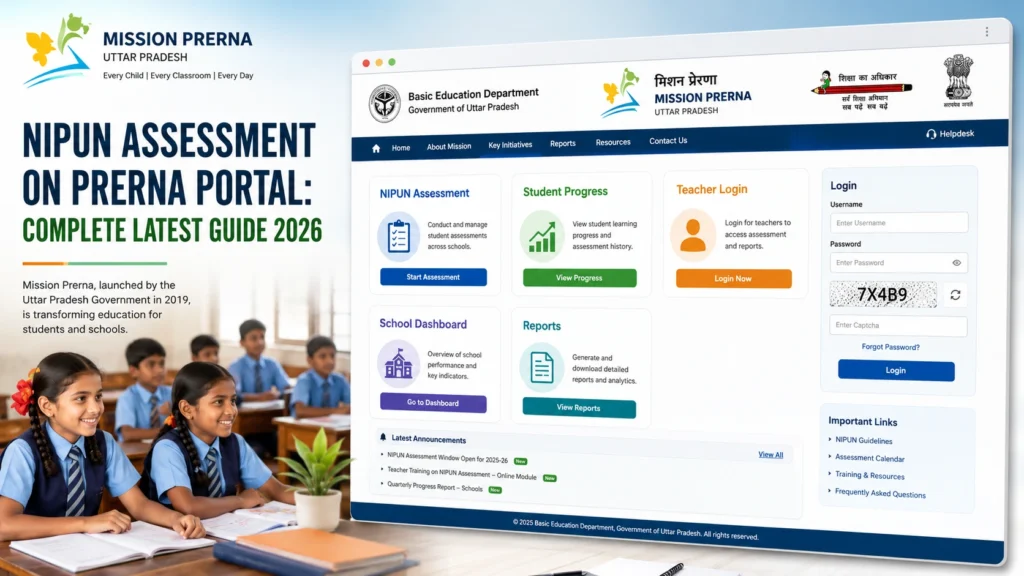
- Open your web browser
- Go to the Prerna Portal login page
- Enter your username and password or use OTP
- Click Login
- Make sure you have the right login credentials and your internet is stable.
- From the dashboard, find the NIPUN Assessment menu
- Click to open the assessment entry page
- This section lists classes and students ready for assessment entry.
- Choose the class/grade you want to assess
- Select section if applicable
- Select the assessment term (Term 1, Term 2, or NIPUN cycle)
- Make sure you pick the correct term before entering marks.
- Click on a student’s name
- The portal will show a form for that student’s NIPUN scores
- You can enter marks individually or use a bulk upload option (if available).
- There are usually multiple categories:
- Reading
- Writing
- Numeracy
- Language comprehension
- Reasoning and logic
- Fill in marks or select performance levels as per your assessment results.
- Carefully check all entries
- Ensure all students have values recorded
- Look for missing fields or mistakes
- Verification keeps your records accurate and avoids errors.
- Click Save first to store temporary data
- After review, click Submit to finalize
- Once submitted, the data becomes part of the student’s official record.
- आप जानकारी डाउनलोड भी कर सकते हैं, अगर आक इसकी जरूरत हो।
Step 8: Logout
- Always log out after completing your session to protect your account.
Common Errors & Solutions
| Problem / Error | Possible Cause | Solution |
|---|---|---|
| “Unable to save” | Internet problem | Check network, retry submission |
| Wrong student list shown | Incorrect class selected | Choose correct class/section |
| Fields not visible | Page not fully loaded | Refresh page or clear browser cache |
| Permission denied | Role access not allowed | Contact school admin for permissions |
| Assessment disappears | Session timed out | Log in again and re‑enter |
Quick Tips for Smooth NIPUN Assessment Entry
FAQs
Conclusion
Entering NIPUN assessment data on the Prerna Portal is an important task that helps teachers track foundational learning and support student progress. By following the simple steps above and checking your entries carefully, you ensure accurate records and help every child get timely support.
This process helps make learning outcomes measurable, transparent, and meaningful for schools, parents, and students alike.


