
Prerna Portal Complete Guide for Schools Latest Update 2026
The Prerna Portal is an essential platform for managing school data and ensuring the smooth functioning of educational activities under the Mission Prerna initiative. It helps schools track student progress, teacher attendance, facilities, and more, ensuring compliance with Uttar Pradesh government guidelines.
This complete guide is designed for school administrators, teachers, and staff to understand how to use the Prerna Portal effectively and efficiently. Let’s dive into the portal’s key features, processes, and best practices.
What is the Prerna Portal?
The Prerna Portal is a government-developed platform to help schools in Uttar Pradesh improve educational outcomes through data-driven management. It provides tools to:
The portal is designed to help school administrators, teachers, and parents stay connected and informed, creating a more effective and efficient educational system.
You can also read: Prerna Portal for Headmasters: Full Guide Latest Update 2026
Key Features of the Prerna Portal
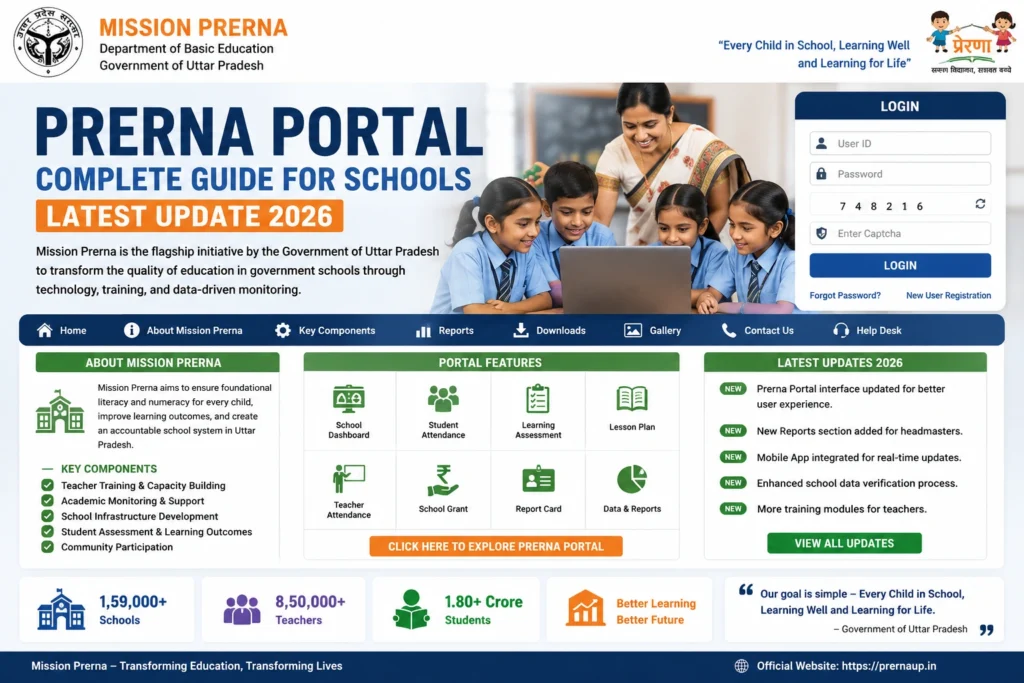
The Prerna Portal helps schools maintain accurate student records, from enrollment to academic progress.
- Student Enrollment: Input and update student details such as name, date of birth, Aadhaar number, and more.
- Attendance Tracking: Teachers mark student attendance daily, which is used for both reporting and Mid-Day Meal (MDM) records.
- Holistic Progress Report (HPR): Track student performance across multiple subjects and areas such as literacy, numeracy, and overall academic growth.
Tip: Always keep student records up-to-date, especially for students transitioning grades.
School administrators use the portal to manage teacher data, including personal information, attendance, and progress.
- Teacher Enrollment and Data: Update teacher details such as qualifications, subject expertise, and contact information.
- Teacher Attendance: Mark daily attendance for teachers, and ensure that it is accurately reflected in the portal.
- Training Records: Track teachers’ participation in professional development programs such as Diksha and Nishtha.
Tip: Regularly update teachers’ training certifications and qualifications to maintain compliance.
The Prerna Portal requires schools to update and monitor their infrastructure and facilities, ensuring that they meet state standards.
- Classroom Conditions: Verify and update the status of classrooms, including seating arrangements, lighting, and teaching tools.
- Toilet and Hygiene Facilities: Upload photos and information about the condition of toilets, drinking water facilities, and sanitation.
- Playgrounds and Sports Facilities: Update data about the school’s playground, sports equipment, and safety measures.
Tip: Ensure regular facility audits to keep records updated and maintain school hygiene and safety standards.
The Prerna Portal plays a crucial role in monitoring the Mid-Day Meal (MDM) scheme, which provides nutritious meals to students.
- MDM Attendance: Ensure that daily attendance is recorded, especially regarding students who are served meals.
- Photo Uploads: Schools may be required to upload photos of meal distribution to verify that meals are being provided according to the program.
Tip: Keep a record of MDM distribution and ensure hygiene standards are being followed to maintain transparency.
Schools must submit monthly and annual reports on student progress, attendance, infrastructure, and government schemes.
- Monthly Reports: Submit regular attendance, MDM records, and student progress updates.
- Annual Reports: Provide a comprehensive overview of the school’s performance, facilities, teacher participation, and more.
Tip: Set reminders to complete monthly reports before the end of each month to avoid last-minute rushes.
How to Use the Prerna Portal Effectively
Setting Up School and Teacher Profiles
The first step for any school is to set up its profile on the portal.
Register the School:
Ensure that the school is registered with accurate school information.
Add Teacher Information:
Register all teachers with their contact details, qualifications, and subject expertise.
Managing Data and Regular Updates
Once the profile is set, the following tasks need to be done regularly:
Attendance Marking:
Teachers should mark student and teacher attendance daily. Double-check for discrepancies before final submission.
Updating Student Progress:
Teachers should regularly update student progress reports based on assessments and feedback.
Uploading Facility Data:
Ensure that photos and data related to school facilities (classrooms, toilets, playgrounds) are uploaded on time.
Tip: Create a weekly checklist to ensure that all necessary tasks are completed on time.
Engaging with Parents
The Prerna Portal can also be used to keep parents informed about their child’s progress, attendance, and any school activities.
Lesson Plans:Share Progress Reports:
Teachers can share Holistic Progress Reports (HPR) with parents to keep them updated on their child’s academic development.
Monitor Feedback:
Parents can provide feedback or raise concerns about their child’s progress.
Tip: Regular communication with parents through the portal helps build a better relationship and keeps them involved in their child’s learning.
Common Prerna Portal Errors and Fixes
Here are some common errors schools might encounter while using the Prerna Portal, along with solutions:
Login Issues
Fix: If you can’t log in, check that you’re using the correct username and password. Use the “Forgot Password” option if needed.
Data Not Saving
Fix: Ensure that the internet connection is stable. If data still doesn’t save, clear the browser cache and try again.
Photo Upload Failures
Fix: Ensure that the file size is under 2 MB and in JPEG or PNG format. If the issue persists, try uploading from another device.
FAQs
Conclusion
The Prerna Portal is a powerful tool for managing school activities, improving student outcomes, and ensuring compliance with government standards. By using the portal effectively, school administrators, teachers, and staff can streamline their tasks and contribute to the success of Mission Prerna.
Remember to keep data up-to-date, communicate regularly with parents, and submit reports on time to ensure a smooth experience. If you encounter any issues, don’t hesitate to contact the Prerna Portal Helpdesk or your Block Education Officer (BEO) for assistance.


