
Prerna Portal First-Time Teacher Setup Guide Update (2026)
If you’re a first-time teacher using the Prerna Portal, setting up your account can seem overwhelming, but it’s much easier than it looks. This guide will walk you through the Prerna Portal first-time setup, including registration, login, and how to get started with the platform’s features.
By the end of this guide, you’ll be ready to use the Prerna Portal to access lesson plans, track student progress, complete training modules, and more.
What is Prerna Portal?
Prerna Portal is an initiative by the Uttar Pradesh government to enhance the educational experience for both teachers and students. It provides teachers with the resources and tools they need to improve their teaching, access training modules, track student performance, and streamline administrative tasks.
As a first-time teacher, this portal will be your go-to platform for accessing a variety of teaching resources, tools for professional development, and student progress tracking.
You can also read: Prerna Portal Pass-Out Student Update Guide Update (2026)
Steps to Set Up Your Prerna Portal Account
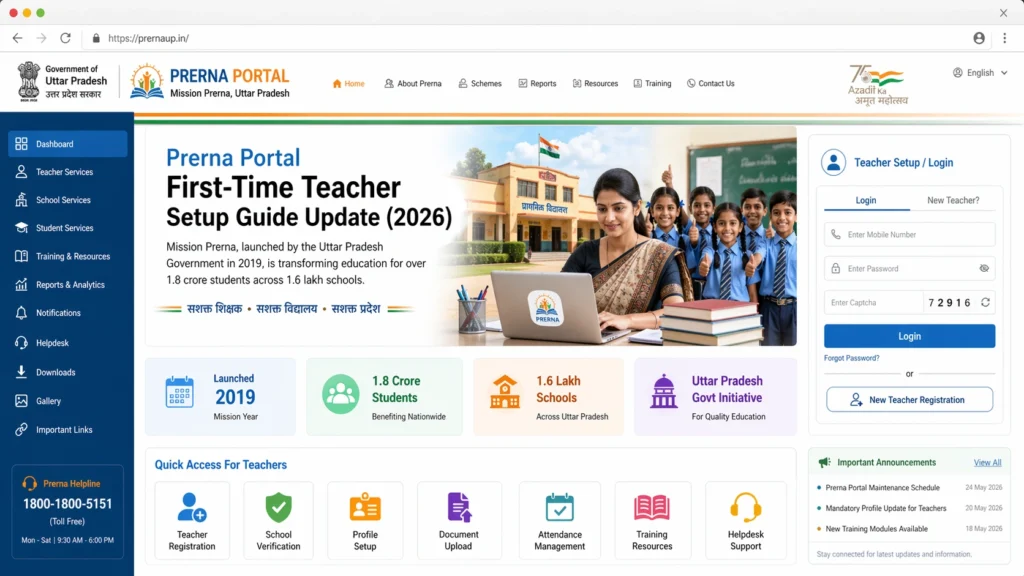
Step 1: Access the Prerna Portal Website
The first step is to visit the Prerna Portal website. To do so:
Go to prernaup.in — this is the official login page for the portal.
Open your browser (Google Chrome or Firefox works best).
If you’re a first-time user, you’ll need to register your account. Here’s how:
- Click on the “Register” button or the “First-time user?” link (this varies depending on the portal version).
- Enter your details, such as:
- Your name
- School information
- Email address (if required)
- Mobile number (this will be your primary contact number and will be used for OTP verification)
- Create a password for your account. Make sure it’s a strong password (a combination of uppercase and lowercase letters, numbers, and symbols).
- Once the form is filled out, click on “Submit” to create your account.
After submitting the form, you will receive a verification OTP (One-Time Password) on your registered mobile number.
You’ll receive an OTP on your registered mobile number.
Enter the OTP in the required field to verify your phone number.
Once verified, you will be successfully registered on the portal.
After completing the registration process, you can now log in:
- Go to the Prerna Portal login page (prernaup.in).
- Enter your registered mobile number and password.
- Click Login to access your teacher dashboard.
You’ll now have access to the portal and can begin using its various features.
Setting Up Your Teacher Dashboard
Once you’ve logged into the Prerna Portal, you’ll be directed to your Teacher Dashboard. Here are the essential steps to set up and get started:
Step 1: Complete Your Profile
Step 2: Explore the Resources Section
The Prerna Portal has an extensive library of resources for teachers:
Step 3: Access Training Modules
If you haven’t already, complete the teacher training modules available on the portal. These modules will help you understand how to use the portal effectively and enhance your teaching practices. Look for the “Training” or “Professional Development” section on your dashboard.
Getting Started with Teaching Tools
Step 1: Accessing Student Data and Performance
One of the main benefits of the Prerna Portal is that you can easily track your students’ performance. The portal allows you to:
Step 2: Upload Data for DBT (Direct Benefit Transfer)
You may also be responsible for uploading data related to DBT schemes (like student meal plans or book allocations). You can manage and upload this information directly through your teacher dashboard.
Additional Features on the Prerna Portal
Step 1: Use the Mobile App
In addition to the website, the Prerna Portal has a mobile app that you can download. The app allows you to access your account on the go, so you can:
Step 2: Stay Updated with Notifications
The Prerna Portal sends important updates and notifications about training programs, new resources, or policy changes. Make sure to check your notifications regularly to stay informed about the latest features and updates.
FAQs
Conclusion
Setting up your account on the Prerna Portal as a first-time teacher is a straightforward process. By following the steps outlined in this guide, you’ll be able to log in, complete your profile, and access valuable teaching resources.
Make sure to explore the training modules, track your students’ progress, and stay connected with the portal’s notifications to stay updated on the latest resources and programs.
If you run into any issues during the setup, don’t hesitate to contact Prerna Portal support for assistance.


