
Prerna Portal Pass-Out Student Update Guide Update (2026)
The Prerna Portal is designed to streamline educational administration across Uttar Pradesh’s government schools. One important task for teachers and administrators is updating the status of pass-out students (students who have completed their education and are leaving the school). Keeping these records up-to-date is essential for the effective functioning of the system and maintaining accurate data for future reference.
This guide will walk you through the step-by-step process for updating the status of pass-out students on the Prerna Portal.
Step 1: Log in to the Prerna Portal
To start the process, the first step is to log in to the Prerna Portal.
You can also read: Prerna Portal: TC or Transfer? What to Choose Update (2026)
Step 2: Navigate to the Pass-Out Students Section
Once logged in, follow these steps:
Step 3: Select the Student to Update
You will be shown a list of students currently enrolled at the school. To update a student’s status:
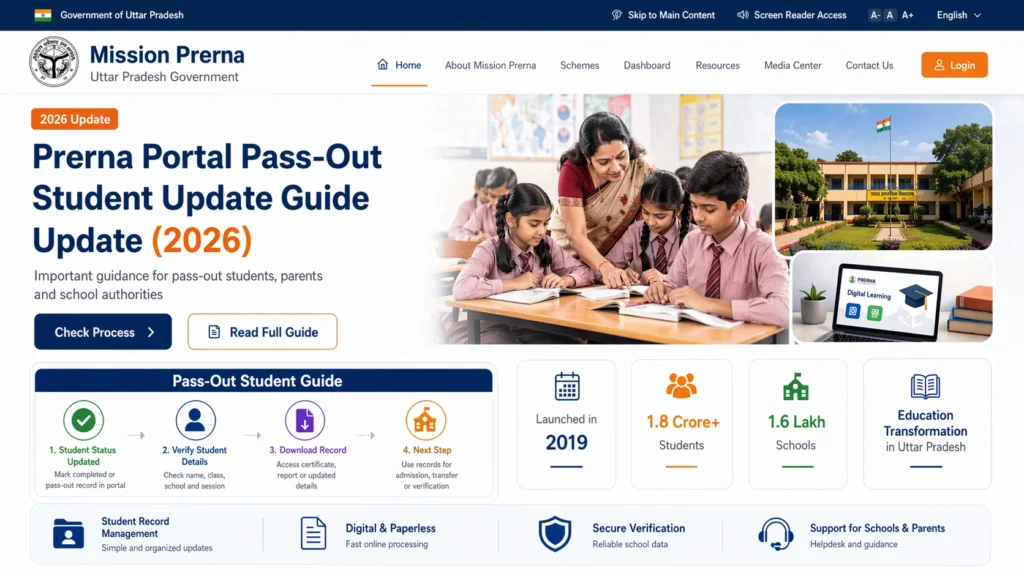
Step 4: Update the Pass-Out Status
Once you’ve selected the student, follow these steps to mark them as a pass-out:
Select the student’s status
Choose “Pass-Out” or “Graduated” from the available status options.
Enter the passing year
Enter the year the student is completing their studies.
Transfer or Discharge Details
If the student is transferring to another institution or leaving the school, mention their new institution or reason for leaving (if applicable).
Upload necessary documents
Some students may have documents like Transfer Certificates (TC) or Mark Sheets to upload. Ensure the necessary files are uploaded in the correct format (PDF, JPG, etc.).
Step 5: Review the Information
Before finalizing the update, make sure:
Step 6: Submit the Update
After reviewing the information:
Step 7: Confirmation and Acknowledgment
Once the status is updated:
The student’s status will now be marked as “Pass-Out” in the system, and their records will be archived for future reference.
Common Issues and Troubleshooting
- If the student is not visible in the list, ensure that the student has completed their course and all necessary academic records are updated.
- You may need to check if the student’s profile is in the correct grade or status before updating.
- Ensure that the file format is correct (PDF, JPEG, etc.) and that the file size doesn’t exceed the portal’s limit.
- Try uploading the document in smaller sizes if it fails.
- In some cases, the system may not immediately show the updated status. Refresh the page or log out and log back in.
- Contact the district education office if there are continuous issues with updating the status.
- If there’s any error in the generated Transfer Certificate (TC) or Mark Sheet, report it immediately for correction.
FAQs
Conclusion
Updating the pass-out student status on the Prerna Portal is a critical step in keeping student records accurate and up-to-date. Following this guide ensures a smooth and hassle-free process for both teachers and administrators. If any issues arise, don’t hesitate to contact the relevant educational authorities for assistance.
This simple process helps to ensure that all students are properly marked as pass-out, and their records are stored for future reference or educational needs.


