
Prerna Portal Aadhaar Verification Fix Guide Update (2026)
The Prerna Portal is a key platform for teachers and students in Uttar Pradesh, providing essential tools and resources for education. One of the critical verification processes on the portal is Aadhaar Verification, which is used to authenticate user data and ensure accurate records. However, sometimes users face issues with Aadhaar verification, such as errors or delays.
If you’re encountering problems with Aadhaar verification on the Prerna Portal, this guide will help you understand the issue and provide steps to fix it quickly.
Why is Aadhaar Verification Important on the Prerna Portal?
Aadhaar verification is an essential part of ensuring the accuracy and authenticity of user data. It’s used for:
For teachers, students, and school admins, this verification is necessary to access portal features, receive benefits, and track progress.
You can also read: Prerna Portal DBT Verification Guide Latest Update (2026)
Common Aadhaar Verification Issues
Here are the most common Aadhaar verification issues that users face:
Aadhaar Number Mismatch
The number entered does not match the one in the Prerna Portal database.
Incorrect or Invalid OTP
The OTP sent for verification is either incorrect or expired.
Aadhaar Linking Error
The Aadhaar number is not linked correctly in the system.
Data Discrepancy
The details entered (name, date of birth, etc.) do not match the information in the Aadhaar database.
Server/Portal Issues
Occasionally, issues with the Prerna Portal server can cause delays or errors in Aadhaar verification.
How to Fix Aadhaar Verification Issues on Prerna Portal
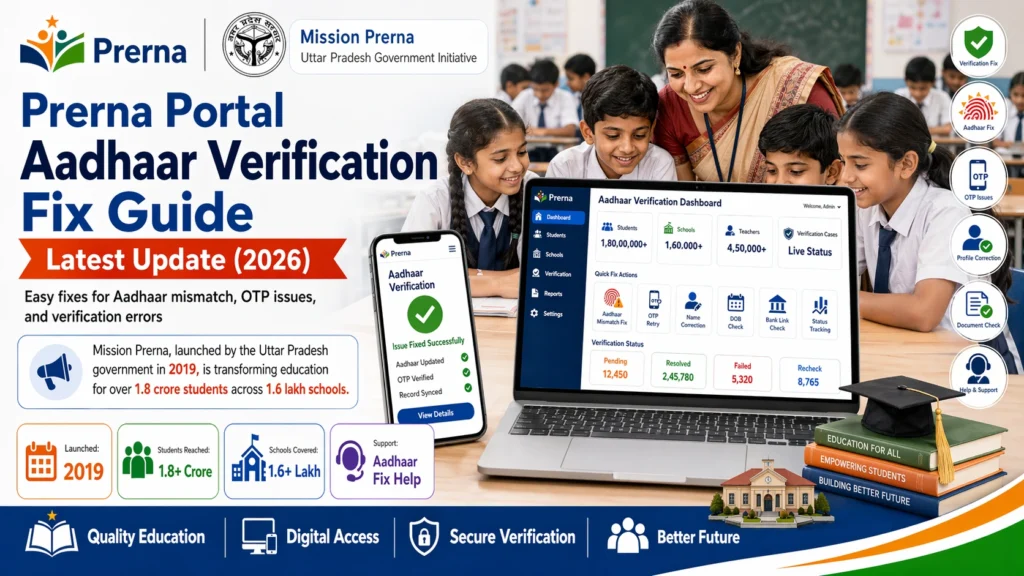
Here are the steps you can take to fix Aadhaar verification issues on the Prerna Portal:
- Ensure that the Aadhaar number you’ve entered is correct. Double-check each digit to ensure there are no typos.
- Make sure there are no extra spaces before or after the number.
- Tip: If you’re entering the Aadhaar number manually, ensure there are no mistakes.
- Ensure the name, date of birth, and other personal details you entered match exactly with what’s on your Aadhaar card.
- Even small discrepancies, like a difference in spelling or the way your name is written, can cause verification issues.
- If there’s a discrepancy, you may need to update your details on the Prerna Portal or Aadhaar database.
- If you’re entering the OTP (One-Time Password), ensure it has not expired. OTPs are usually time-sensitive and expire within a few minutes.
- If your OTP has expired, click on Resend OTP to receive a fresh one.
- Tip: Be quick when entering the OTP to avoid expiry.
- Aadhaar linking can sometimes cause problems if it has not been done properly in the system. Ensure that the Aadhaar number you are using is linked to your registered mobile number and correctly updated in the Prerna Portal.
- If you suspect the linking is incorrect, you may need to contact Prerna Portal support or your school admin to confirm that your Aadhaar number is correctly updated in the system.
- Sometimes, your browser’s cache can cause issues during the verification process. Try clearing your cache or using a different browser (Google Chrome or Firefox are recommended) to complete the Aadhaar verification.
- Steps to clear browser cache:
- In Google Chrome: Go to Settings → Privacy and Security → Clear browsing data → Select Cached images and files → Clear Data.
- In Firefox: Go to Settings → Privacy & Security → Clear History → Choose Cache and click Clear Now.
- Sometimes, the Prerna Portal may experience delays in verification due to server issues. If you’re receiving an error or a delay, try waiting for a few minutes and then attempt the verification again.
- If the issue persists, try logging out and logging back in to the portal.
- f the above steps do not resolve the issue, it’s time to reach out to the Prerna Portal support team. Provide the following details:
- Your Aadhaar number
- The error message you’re receiving
- Your registered mobile number and other details
- The support team will assist you in troubleshooting the issue and resolving any discrepancies in the Aadhaar verification process.
FAQs
Conclusion
Aadhaar verification is an important part of using the Prerna Portal as it ensures accurate data for students and teachers. If you encounter any issues, following the steps above should help resolve most problems quickly. Make sure that all your details are accurate, and your OTP is entered correctly.
If the issue persists, don’t hesitate to contact Prerna Portal support. They will guide you through fixing any Aadhaar verification errors.


