
Prerna Portal MDM Entry Guide for Schools (Step-by-Step)
The Mid-Day Meal (MDM) scheme is a crucial part of the Indian government’s efforts to ensure that children receive proper nutrition during school hours. The Prerna Portal helps schools manage the MDM data efficiently. In this guide, we’ll walk you through the step-by-step process of entering MDM details for your school on the Prerna Portal.

Why is MDM Data Important?
Entering accurate MDM data is essential for the following reasons:
Accurate data entry is vital for schools to get the necessary resources and maintain the integrity of the scheme.
You can also read: 12 Digital Registers on Prerna Portal Explained (Guide 2026)
How to Enter MDM Data on the Prerna Portal
Follow these simple steps to enter MDM details on the Prerna Portal for your school:
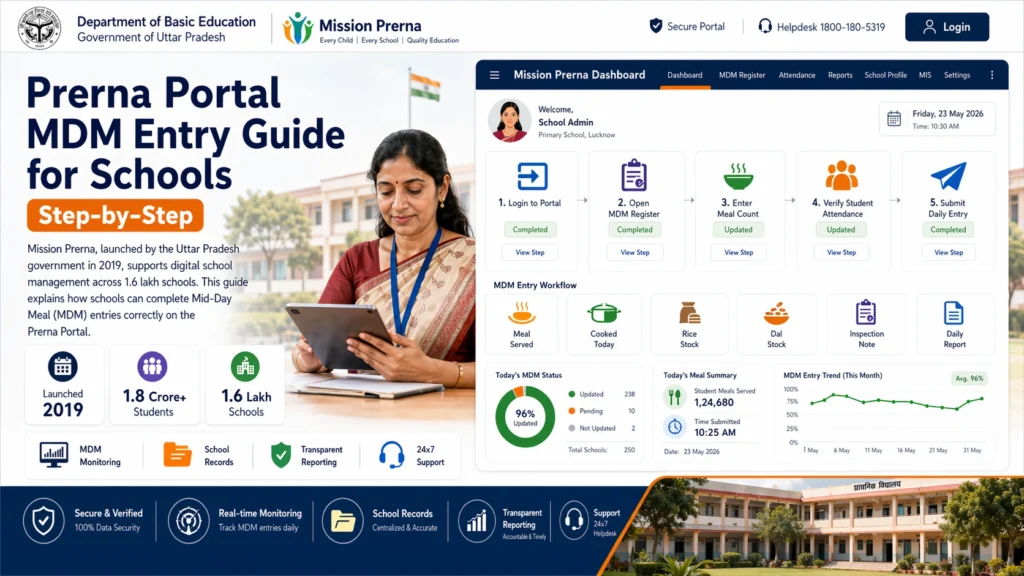
Open the Prerna Portal at prernaup.in.
Click on Admin Login (or Teacher Login if you have the appropriate permissions).
Enter your registered mobile number and OTP (One-Time Password) to log in.
Once you’re logged in, you will be directed to the dashboard.
From the dashboard, look for the MDM (Mid-Day Meal) section in the menu.
Select the MDM Entry or MDM Details option.
In this section, you will need to input details related to the mid-day meal served to students:
Meal Quality/Observations: Enter any observations related to the meal (e.g., if there were any issues or special preparations).
Date of the Meal: Enter the date when the meal was served. Make sure it’s correct.
Number of Students Present: Enter the total number of students present on that day. This will help calculate the number of meals needed.
Meals Served: Enter the total number of meals served to the students. This number should match the number of students present unless there were any discrepancies (e.g., some students did not take the meal).
Meal Type: Select the meal type (e.g., vegetarian, non-vegetarian) from the dropdown options.
If the portal requires, you might need to upload:
- Meal receipt or voucher (if applicable).
- Photographs of the meal being served (optional but may be required in some cases).
- Reports or documentation from health inspections, if available.
Make sure to upload the necessary files to complete the entry.
ou’ve entered all the required details:
- Double-check the entered data for accuracy.
- Click on the Save button to save the data temporarily.
- If everything is correct, click on Submit to finalize and submit the MDM data for the day.
Once submitted, the system will store the information, and you’ll receive a confirmation message.
After submitting the data, it’s important to verify:
Check for successful submission: You should see a message indicating that your MDM entry was successfully saved and submitted.
Review the entered data: Check for any discrepancies and ensure all numbers are correct.
Common Issues & Solutions for MDM Data Entry
“I can’t log in to the Prerna Portal.”
Make sure that you’re using the correct login credentials. If you’re an admin or authorized user, verify with your school’s administration to ensure you have the necessary permissions.
“The meal data won’t save.”
This may happen due to internet connectivity issues. Make sure you have a stable internet connection and try again.
“I forgot to enter data for a specific date.”
You can usually update or edit the entry for the previous day if the portal allows. Contact your school admin for assistance if you’re unable to do so.
“The number of meals served is showing an error.”
Ensure the number of meals matches the number of students marked present. If there was any issue with the meal count, update the details accordingly.
FAQs
Conclusion
Entering MDM data on the Prerna Portal is essential for ensuring accurate records of the mid-day meal scheme. By following the simple steps outlined in this guide, you can easily manage meal data and keep the records up to date.
Regular and accurate MDM entries are crucial for receiving timely support and maintaining compliance with government programs.
If you have any issues or questions while entering MDM data, reach out to your school admin or contact Prerna Portal Support for assistance.


