
12 Digital Registers on Prerna Portal Explained (Guide 2026)
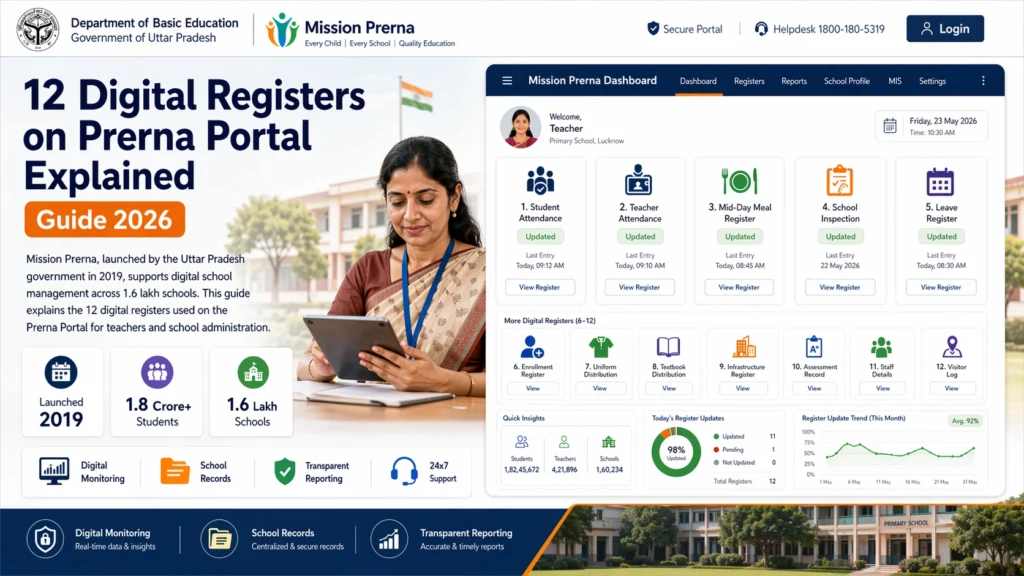
The Prerna Portal provides a set of 12 Digital Registers that help teachers and administrators maintain accurate, organized, and easily accessible records. These registers streamline data entry, improve tracking, and make school management more efficient.
In this guide, we’ll explain each of the 12 Digital Registers and how to use them effectively.

What are Digital Registers on the Prerna Portal?
Digital Registers on the Prerna Portal replace traditional paper-based registers and allow teachers to record, track, and manage various aspects of school operations electronically. These registers are designed to reduce manual errors, save time, and improve the accessibility of important school data.
The 12 Digital Registers cover a wide range of tasks, including attendance, lesson planning, student progress tracking, and more.
You can also read: Prerna Portal Attendance Rules for Teachers (Guide 2026)
12 Digital Registers on the Prerna Portal
Below are the 12 Digital Registers provided by the Prerna Portal, each serving a specific function:
Attendance Register
This register allows teachers to mark and track daily attendance for each student. It records whether students are present, absent, or on leave.
Features: Mark attendance by clicking “Present,” “Absent,” or “Leave.”
Option to add reasons for absence or leave.
Automatically calculates attendance statistics for the month.
Lesson Plan Register
Teachers can plan and record the lessons they intend to teach each day. The Lesson Plan Register helps keep track of syllabus completion.
Features: Plan lessons and mark them as completed.
Attach notes or learning objectives for each lesson.
Review syllabus coverage at any point during the academic year.
Student Performance Register
This register helps track the academic progress and performance of each student over time.
Features: Enter marks for tests, assignments, and exams.
Track overall performance and identify students needing additional support.
Generate progress reports for individual students.
Homework Register
Teachers can use this register to record the homework assigned to students and track its completion.
Features: Assign homework and set deadlines.
Record whether students submitted their homework.
Note any remarks or additional instructions.
Subject Allocation Register
This register helps allocate subjects to teachers and track teaching assignments.
Features: List the subjects assigned to each teacher.
Track subject-specific duties and responsibilities.
Update subject allocation if changes occur during the year.
Class Schedule Register
This register records the class schedules for each teacher and ensures that all lessons are taught according to the timetable.
Features: View and update the class schedule for each teacher.
Track lesson timings and ensure all subjects are covered.
Easily modify the schedule if there are any changes.
School Events Register
This register keeps a record of all school events such as sports days, cultural activities, and academic functions.
Features: Track events and assign roles to staff members.
Record event dates and locations.
Attach documents or resources related to the events.
Leave Register
This register tracks the leave records of both teachers and students.
Features: Record leave requests and approvals.
Track reasons for leave (e.g., medical, personal).
Maintain a log of leave balances for teachers.
Student Health Register
This register allows schools to monitor and track students’ health records, including medical conditions and visits to the school nurse.
Features: Record medical conditions and prescribed medications.
Track immunization details and any health-related notices.
Provide real-time access to student health information.
Library Register
The Library Register helps manage student borrowing and returns of library books.
Features: Record which books are borrowed and by which student.
Track the due date and return status of books.
Generate reports on library usage and book availability.
Fees Register
This register tracks the fee payments made by students and helps in managing the financial aspect of the school.
Features: Record fee payments for each student.
Track due fees and generate reminders.
Generate fee receipts and track financial status.
Classroom Behavior Register
This register allows teachers to track and monitor the behavioral progress of students.
Features: Record positive and negative behavior.
Track incidents such as disciplinary actions or commendations.
Keep a record of student behavior for reports or parent meetings.
How to Use Digital Registers on the Prerna Portal
Go to prernaup.in.
Click on Teacher Login or Admin Login.
Enter your registered mobile number and OTP to access the portal.
Once logged in, you will be directed to your dashboard.
From the dashboard, navigate to the Digital Registers section.
Choose the register you want to work with (attendance, lesson plan, student performance, etc.).
For each register, enter the relevant data (e.g., attendance, lesson plans, student marks).
Ensure that all entries are accurate.
After entering the data, click Save or Submit to store the information.
Common Issues and Solutions with Digital Registers
“I can’t access a specific register.”
If you can’t access a register, make sure you have the appropriate permissions. Teachers and admins may have different access levels. Contact the admin for help.
“Data isn’t saving.”
Ensure you have a stable internet connection and try saving again. If issues persist, refresh the portal or contact support.
“I made an error while entering data. How do I fix it?”
You can easily edit the entries in the register. Just go back to the relevant section, make corrections, and save the changes.
FAQs
Conclusion
The 12 Digital Registers on the Prerna Portal make managing school records more efficient, accurate, and secure. From attendance to lesson plans and student progress, these registers help schools stay organized and ensure that every detail is tracked digitally.
By following this guide, you’ll be able to easily manage your digital records and make the most of the Prerna Portal’s features.
If you have any further questions or encounter any issues, don’t hesitate to reach out to Prerna Portal Support.


