
Prerna Portal Student Attendance Update Guide (2026)
Managing student attendance is one of the key tasks for teachers, and the Prerna Portal makes it easy to track and update attendance records. This guide will walk you through the step-by-step process of updating student attendance, ensuring that your records are always accurate and up to date.

Why Updating Student Attendance is Important
Updating student attendance regularly is crucial for several reasons:
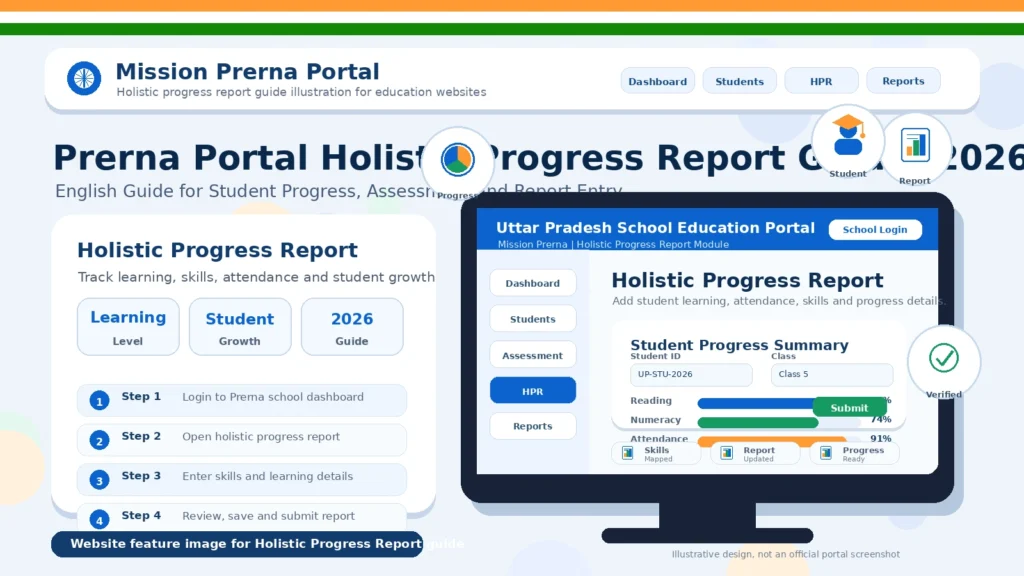
By using the Prerna Portal, you can easily update student attendance and ensure everything is properly documented.
You can also read: Prerna Portal Book Distribution Entry Guide Update (2026)
How to Update Student Attendance on the Prerna Portal
Follow these simple steps to update student attendance on the Prerna Portal:
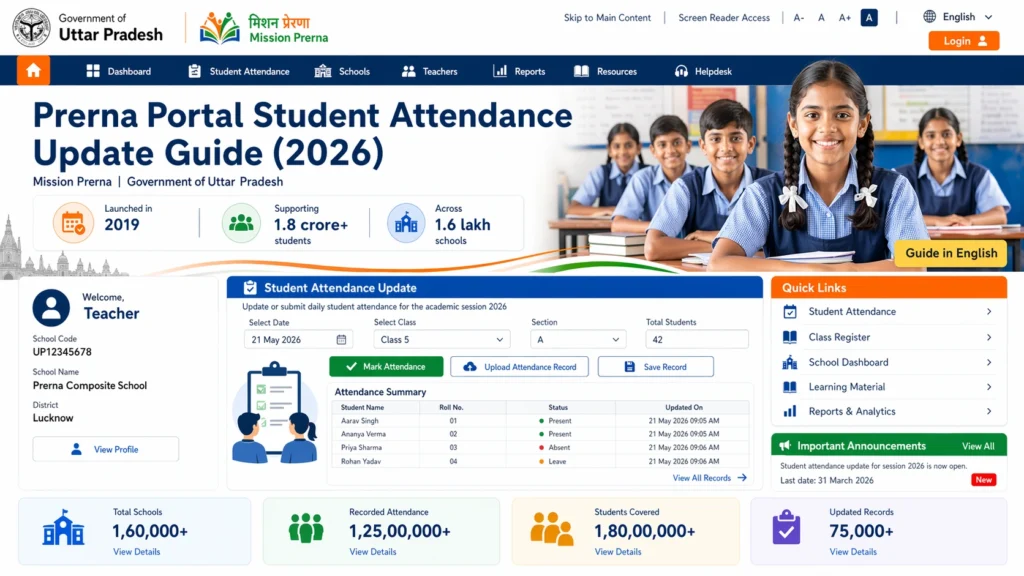
Open the Prerna Portal website (prernaup.in).
Click on the Teacher Login option.
Enter your registered mobile number and OTP (One-Time Password) to access your account.
Once logged in, you will be taken to your teacher dashboard.
From the teacher dashboard, locate the Attendance section.
Select the class you wish to mark attendance for.
Choose the date for which you want to update the attendance (make sure the date is correct for the current session).
For each student in the class, follow these steps:
Add Leave Details (if applicable): If a student is on leave, update the leave type (e.g., medical leave or personal leave). This helps in keeping track of the student’s absence for official records.
Select Attendance Status: You will have options to mark the student as:
Present
Absent
Leave (if applicable)
Once all students’ attendance is marked, double-check the status for accuracy:
Make sure all present students are marked accurately.
Verify absentees and ensure leave types are correct.
After confirming the attendance for all students, follow these steps:
- Click on the Save or Submit button to store the updated attendance records.
- The system will automatically save your attendance data for the day.
Note: Once submitted, you may not be able to change the attendance for that day unless you have administrative permissions.
Additional Features for Attendance on Prerna Portal
Here are a few more features that might help you manage attendance effectively:
Attendance History
You can always review past attendance records for each student by checking their attendance history section. This gives you a clear picture of their attendance patterns over time.
Leave Management
For students on extended leave (e.g., long-term medical leave), ensure their leave status is updated properly to avoid discrepancies later. You can also upload medical certificates or other documents if required by your school.
Notifications
The Prerna Portal may notify you of any discrepancies or reminders for attendance updates. Make sure to pay attention to these notifications to keep your records accurate.
Common Issues & Solutions for Updating Attendance
“I can’t see the Attendance Section”
If you don’t see the attendance section, make sure you are logged in as a teacher and have the correct permissions. Contact your school administrator if needed.
“Attendance Won’t Save”
If your attendance is not saving, check your internet connection. Ensure you have selected an attendance status for all students before clicking Save. Refresh your browser if necessary.
“I Forgot to Mark Attendance”
If you miss marking attendance for the day, contact the school admin immediately. They may help you update the records manually or allow you to make corrections within a specified period.
FAQs
Conclusion
Updating student attendance on the Prerna Portal is a simple but essential task. By following this guide, you can efficiently manage attendance for your students, ensuring that all records are accurate and up-to-date. Regularly updating attendance helps not only in academic monitoring but also ensures that students receive all the benefits and support they’re entitled to.
If you face any issues while updating attendance or need further assistance, feel free to contact your school admin or Prerna Portal support.


