
Prerna Portal Invalid OTP Error: Easy Fixes Update (2026)
Getting the Invalid OTP error while trying to log in to the Prerna Portal can be frustrating. This issue often occurs due to small errors that are easy to fix. In this guide, I will walk you through the reasons why the Invalid OTP error occurs and the simple steps you can take to fix it quickly.
Why Am I Getting an Invalid OTP Error?
An Invalid OTP error typically happens for one of the following reasons:
Expired OTP
OTP codes are time-sensitive and expire after a certain period (usually a few minutes).
Incorrect OTP
If you’ve mistyped the OTP or missed a digit, the portal will reject the OTP as invalid.
OTP Sent to the Wrong Number
If your registered mobile number has changed, the OTP might be sent to the old number.
Network Issues
Sometimes, poor internet or mobile network connectivity can cause delays or errors in receiving the OTP.
Too Many Login Attempts
If you’ve tried multiple times to enter an OTP, the portal may lock out the attempts temporarily.
You can also read: Prerna Portal Invalid User Error Explained Update (2026)
How to Fix the Invalid OTP Error
If you’re facing an Invalid OTP error, here’s a step-by-step guide to fix it:
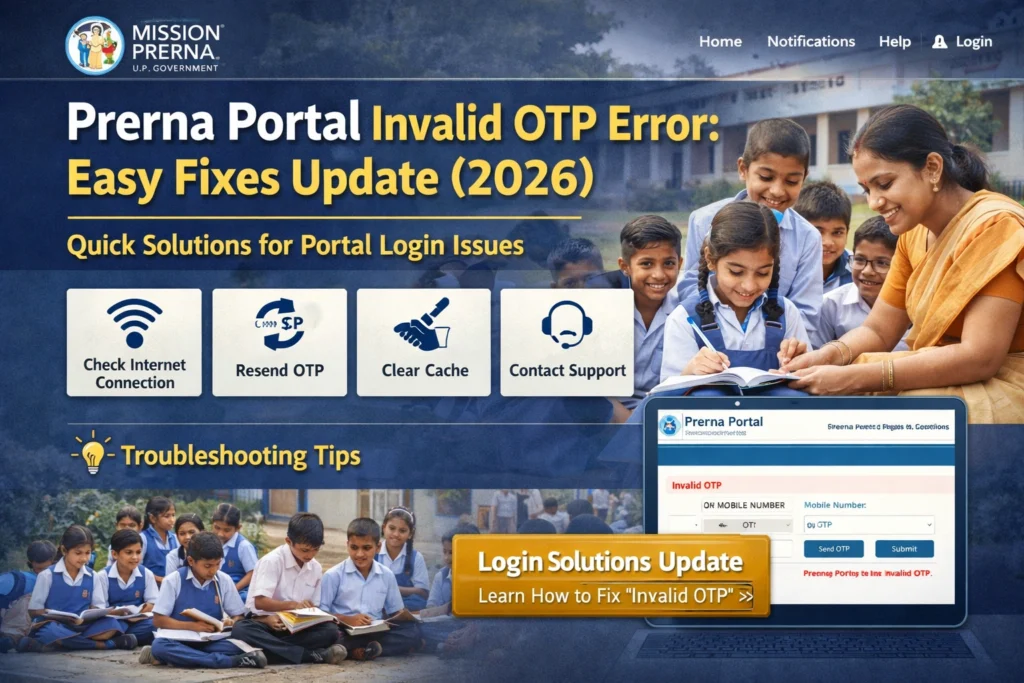
If the OTP has expired or is invalid, the first thing you should do is click the Resend OTP button. This will generate a new OTP, which should work.
Be quick! Enter the new OTP as soon as it arrives to avoid it expiring.
When you receive the OTP, make sure to enter it exactly as it appears. Even a small mistake, such as typing “O” (capital o) instead of “0” (zero), can cause the OTP to be invalid.
Copying and pasting the OTP directly from the message can help avoid typos.
Make sure that the mobile number you’re using for OTP verification is the one registered with the Prerna Portal.
If your mobile number has changed recently, contact your school admin or the Prerna Portal support team to update your number in the system.
Sometimes, an outdated or corrupted cache in your browser can cause errors with OTP verification.
Try clearing your browser cache and cookies or try logging in using a different browser (Chrome or Firefox work best).
Ensure that your phone or device has a stable internet connection. Weak or fluctuating network signals can delay the arrival of the OTP or cause issues when submitting it.
If you’ve requested the OTP too many times, the portal might temporarily lock the request feature. Wait a few minutes before trying again to avoid being locked out.
What If the Problem Persists?
If you’ve tried all the above steps and still face the Invalid OTP error, you can:
Wait a few minutes
and try requesting the OTP again. Sometimes, server issues can cause delays in OTP delivery.
Contact Prerna Portal Support
If you continue facing issues, reach out to the support team. They can help troubleshoot your account and ensure that your details are correct in the system.
Reach Out to Your School Admin
In some cases, your school admin may need to assist you with account issues or ensure that your registration is properly set up.
FAQs
Conclusion
The Invalid OTP error on the Prerna Portal can be caused by simple issues like expired codes, typos, or network problems. By following the steps above, you should be able to quickly resolve the error and log in to the portal successfully.
If the problem persists, don’t hesitate to reach out to support for further assistance. Staying proactive and following these steps will ensure you get back to using the Prerna Portal without any delays.


