
Prerna Portal Photo Upload Rules for Schools Update (2026)
As part of the Prerna Portal initiative, schools in Uttar Pradesh are required to upload photos of students, teachers, and school facilities as part of various data entry processes. This helps ensure that schools maintain a transparent and accountable record of their activities, cleanliness, and student attendance.
This guide will help you understand the photo upload rules for schools on the Prerna Portal, making it easier for you to follow the process smoothly and avoid any issues.
Why Are Photos Important on the Prerna Portal?
The Prerna Portal uses photos to monitor the progress and quality of school facilities and education. Here’s why they’re essential:
School Inspection:
Photos help in documenting the condition of school infrastructure during inspections.
Attendance Verification:
Photos are used for student attendance, ensuring that the records are accurate and up-to-date.
tudent Verification:
For various student-related data entries, photos help verify their presence and enrollment status.
Transparency and Accountability:
Uploading photos of facilities, cleanliness, and safety measures helps in maintaining transparency.
You can also read: Prerna Portal Operation Kayakalp Guide (2026)
Prerna Portal Photo Upload Rules for Schools
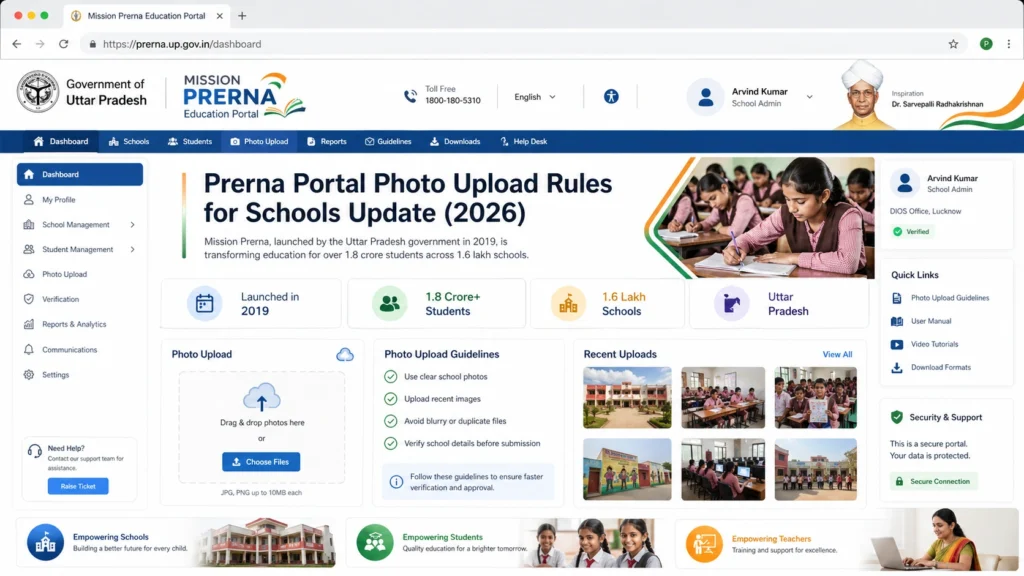
- Resolution: The photos should have a minimum resolution of 800×600 pixels to ensure clarity.
- Quality: Ensure the photos are clear, sharp, and not blurry. Avoid photos with low lighting or any distortion that may make the subject unclear.
- Lighting: Photos should be taken in well-lit environments to ensure visibility of all details.
- File Size: The maximum allowed file size for each photo is 2 MB. Photos exceeding this limit may not upload successfully, so ensure that you resize them if necessary.
- File Format: Only JPEG and PNG formats are accepted for photo uploads. Ensure the photos are saved in one of these formats before attempting to upload them.
- The following types of photos are typically required:
- Classroom Photos: Upload clear photos of classrooms, showing seating arrangements, educational materials, and the overall condition of the room.
- Student Photos: Each student must have their photo uploaded for attendance verification and enrollment purposes. Ensure the photo is of the student’s face and visible clearly.
- Teacher Photos: Teachers should also have their photos uploaded for identification and verification.
- School Facilities: Photos of important school facilities like restrooms, playgrounds, sanitation areas, and drinking water stations need to be uploaded to ensure compliance with hygiene and safety standards.
- Safety Measures: Upload photos that demonstrate the implementation of safety measures, such as fire extinguishers, safety signage, and first aid kits.
- For Classrooms: Ensure the classroom photo shows at least 70-80% of the room, including seating arrangements, walls, blackboards, and the overall environment.
- For Student Photos: The photo should only include the student, with their face visible clearly. Avoid group shots that make it hard to identify individual students.
- For Facility Photos: Make sure the photos are taken from angles that clearly depict the condition of the facility. If it’s a restroom, ensure the cleanliness is clearly visible in the shot.
- Do not upload photos that include personal items or irrelevant content that does not directly relate to the school’s infrastructure or students.
- Avoid cluttered backgrounds. Only the relevant parts of the school (classrooms, facilities, etc.) should be in the photo.
- Ensure that photos uploaded across the portal are consistent in quality. For example, all classroom photos should be clear and of the same quality.
- Avoid mixing photos of poor quality with high-quality ones, as this may create confusion.
- Ensure that photos are uploaded during the designated time slots, especially for inspections and data submissions.
- Photos of new facilities or updates must be uploaded as soon as the changes are implemented to maintain up-to-date records.
- आप जानकारी डाउनलोड भी कर सकते हैं, अगर आक इसकी जरूरत हो।
Common Issues in Photo Uploads and How to Fix Them
Issue 1: Photo Size Exceeds Limit
Solution: Resize the photo to reduce its size, ensuring it stays under the 2 MB limit. You can use free online image compressors for this.
Issue 2: File Format Not Supported
Solution: Retake the photo in better lighting conditions or with a higher-quality camera to avoid blurry results.
Issue 3: Blurry Photos
Solution: Retake the photo in better lighting conditions or with a higher-quality camera to avoid blurry results.
Issue 4: Wrong Photo Orientation
Solution: Ensure the photo is properly aligned before uploading. If the photo is sideways or upside down, rotate it using your phone or photo editing software.
Issue 5: Photos Not Uploading
Solution: Check your internet connection. If the upload is failing, try uploading the photo from a different network or device.
Tips for Smooth Photo Uploads
Keep a Backup:
Always keep a backup of your photos in case something goes wrong during the upload.
Take Multiple Shots:
If you’re unsure about the photo quality, take multiple shots from different angles to ensure the best one gets uploaded.
Update Regularly:
If there are any improvements or changes in the facilities, upload updated photos regularly to keep the records current.
Clear Descriptions:
Add clear descriptions or labels to your photos when uploading to make sure everyone knows what the photo is depicting.
FAQs
Conclusion
The Prerna Portal photo upload rules are simple once you understand the guidelines. By following the instructions carefully and ensuring your photos meet the required standards, you can ensure smooth submission and avoid common issues.
This helps maintain accurate, up-to-date records for the Uttar Pradesh Basic Education Department and supports the mission of Mission Prerna to improve educational quality across the state.


