
Mid Day Meal Entry on Prerna App: Complete Guide 2026
The Prerna App helps schools in Uttar Pradesh manage student information efficiently. One of the most important features is Mid Day Meal entry, which ensures students’ meals are tracked daily, and all related data is updated for government reporting and school records. If you are a teacher or school staff member responsible for this, this guide will walk you through everything step by step.
Keeping your Mid Day Meal records accurate is essential for transparency, proper resource allocation, and smooth functioning of the school system.
Why Mid Day Meal Entry is Important
Mid Day Meal entry is not just a formality — it has a real impact on students and schools:
Accurate tracking of meals:
Ensures every student receives proper nutrition as part of the government scheme.
Government reporting:
Updated data helps the education department monitor the program and plan supplies efficiently.
Transparency:
Shows accountability in schools and helps prevent misuse of resources.
School record management:
Maintains an organized record of attendance and meals for audits or inspections.
Supports student welfare schemes:
Proper meal records allow schools to benefit from incentives or additional support under various government programs.
You can also read: Operation Kayakalp Entry on Prerna App: (Complete Guide 2026)
Step-by-Step Guide for Mid Day Meal Entry
Entering Mid Day Meal data on the Prerna App is straightforward if you follow these steps carefully:
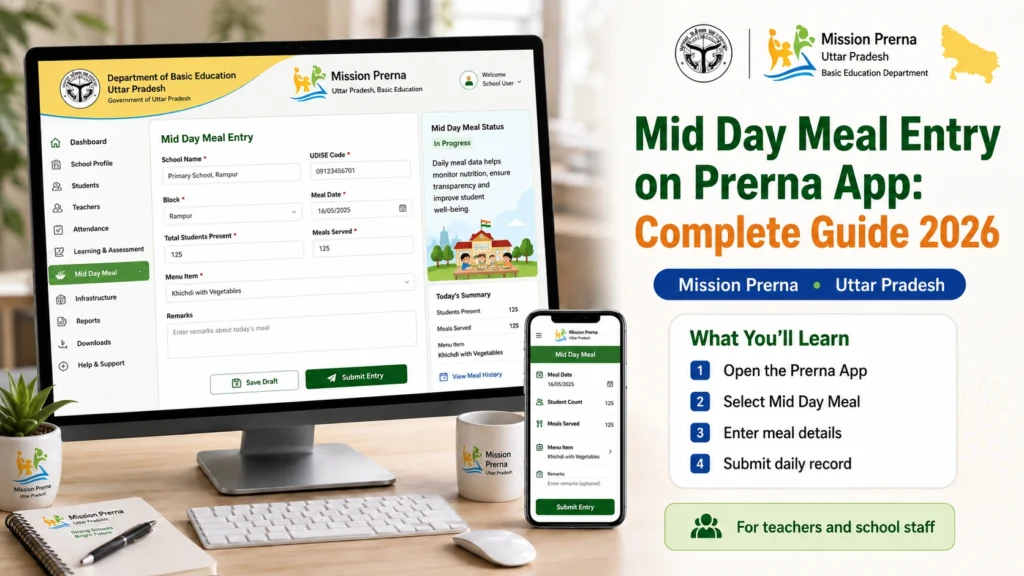
- Open the Prerna App on your mobile device or tablet.
- Enter your school credentials (username, password, or OTP).
- Make sure your device has a stable internet connection for smooth login.
- From the dashboard, tap on “Mid Day Meal” or “Meal Entry”.
- The section will display all classes or sections in your school.
- Choose the relevant class or section for which you want to enter meal data.
- Select the correct date — ensure it matches the day the meals were provided.
- Carefully review all the details before submission.
- Ensure the number of meals matches the student attendance to avoid discrepancies.
- Tap Submit or Save.
- Wait for a confirmation message to ensure your entries are successfully recorded.
- After submission, log out to secure your account.
- Regularly updating your login credentials can enhance security.
- आप जानकारी डाउनलोड भी कर सकते हैं, अगर आक इसकी जरूरत हो।
Common Mistakes to Avoid
Even small errors can lead to problems in the Mid Day Meal records. Avoid these common mistakes:
Checking your entries carefully can save time and prevent reporting errors.
Quick Tips for Smooth Entry
Here are some practical tips for smooth and accurate meal data entry:
Troubleshooting Table for Mid Day Meal Entry
| Problem / Issue | Possible Cause | Solution / Fix |
|---|---|---|
| App not opening | Outdated app or server busy | Update or reinstall app, try during off-peak hours |
| Unable to log in | Wrong credentials or OTP expired | Check username/password, request new OTP |
| Meals not submitting | Poor internet or server error | Use stable internet, refresh app, retry submission |
| Wrong number of students displayed | Attendance not updated | Update attendance first, then enter meal data |
| Entry shows error after submission | Cache or temporary app issue | Clear app cache, restart device, and submit again |
This table helps you quickly identify and fix common problems without confusion.
FAQs
Conclusion
Recording Mid Day Meals on the Prerna App is simple if you follow the steps carefully. Regular and accurate entries ensure that every student receives proper meals and that your school maintains proper records for reporting and audits.
Always update the app, double-check your entries, and follow daily routines. Consistent data entry not only helps the students but also makes school management easier and more transparent.


