
Prerna Portal Geofencing Attendance Guide 2026 (Step-by-Step)
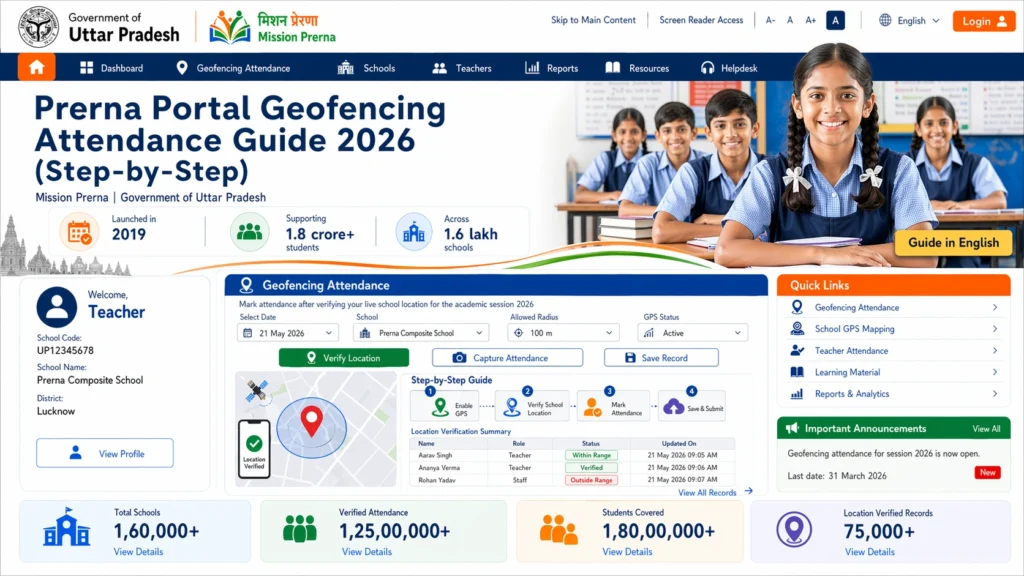
The Geofencing Attendance feature on the Prerna Portal is an advanced tool designed to track attendance based on geographic location. This feature helps ensure that students and teachers are marking attendance only when they are physically present within the designated school premises. It improves accuracy, security, and efficiency in attendance management.
In this guide, we’ll walk you through the step-by-step process of using Geofencing Attendance on the Prerna Portal.

What is Geofencing Attendance?
Geofencing uses GPS or RFID to create a virtual boundary around a location, such as your school’s premises. When students or teachers enter or exit this boundary, their attendance can be automatically marked, ensuring that they are only counted when they are physically on-site.
For example, students can only mark themselves present when they are within the school’s boundaries, helping prevent fraudulent attendance practices.
Why Use Geofencing for Attendance?
There are several advantages to using Geofencing Attendance:
You can also read: Prerna Portal Holistic Progress Report Guide (2026)
How to Set Up and Use Geofencing Attendance on the Prerna Portal
Open the Prerna Portal at prernaup.in.
Click on Teacher Login or Admin Login depending on your role.
Enter your registered mobile number and OTP to log in.
Once logged in, you will land on your dashboard.
From the teacher or admin dashboard, navigate to the Attendance section.
Look for the Geofencing Settings option (this might require admin permissions).
Enable Geofencing Attendance by toggling the setting to On.
Once enabled, the portal will use GPS data to track attendance based on location.
You will need to define the geographical boundary of the school:
Set the GPS coordinates (latitude and longitude) that represent the school premises.
Adjust the radius of the boundary (usually, this is a small area around the school or campus).
For example, if the school has multiple campuses, set boundaries for each campus individually.
e the Geofencing feature is active and boundaries are set, teachers and students will follow these steps:
- For Students:
- Open the Prerna Portal app on their mobile device.
- When they enter the designated school premises, the attendance will be automatically marked as “Present”.
- If they are outside the geofenced area (e.g., at home or off-campus), the system will not mark them as present.
- For Teachers:
- Teachers will also use the Prerna Portal app to mark attendance.
- Teachers must be within the geofenced area for the attendance to be recorded as “Present”.
Note: Make sure that location services are enabled on your mobile device for this feature to work properly.
As a teacher or admin, you can monitor the attendance of students in real-time via the dashboard.
You can see:
Who is present and within the geofenced area.
Who is absent and possibly outside the boundary.
Students marked absent who may have been mistakenly not within the geofenced area.
In some cases, students may not be able to mark attendance due to GPS issues or other technical problems. Here’s what you can do:
Attendance Error Fix: If you notice discrepancies, like a student being marked absent while present, check the Geofencing logs and ensure the GPS boundary is correctly set.
Manual Attendance Update: If a student is in the school but is unable to mark their attendance, admins or teachers can manually mark them as present via the Prerna Portal Dashboard.
Common Issues and Solutions with Geofencing Attendance
“I can’t mark attendance for my student, even though they are on-site.”
Check if the student’s device has location services enabled. Ensure they are within the defined geofenced area and their GPS signal is strong.
“Attendance was marked incorrectly due to location issues.”
Sometimes, GPS can have accuracy issues, especially in crowded areas or with weak signals. If you face this problem often, try resetting the geofence radius and confirm the location accuracy.
“How can I fix geofencing errors or update the school’s boundary?”
Admins can log into the Geofencing Settings section on the portal and update the GPS coordinates or geofence radius if necessary.
“Can parents track their child’s attendance?”
Currently, only teachers and admins have access to the geofencing attendance records. Parents can access basic attendance information but won’t see the real-time location data.
FAQs
Conclusion
Using Geofencing Attendance on the Prerna Portal is a powerful way to ensure that attendance records are accurate and reliable.
It helps prevent fraudulent attendance practices and provides real-time tracking of students and teachers within school premises.
By following the steps in this guide, you can easily set up and manage geofencing attendance, ensuring that your school stays organized and efficient.
If you have any issues or need help with the Geofencing Attendance feature, don’t hesitate to reach out to Prerna Portal Support for assistance.


