
Prerna Portal Captcha Error: Quick Fixes Latest Update 2026
Many users of the Prerna Portal (prernaup.in) face captcha errors while trying to login. Captcha errors can be frustrating, especially when you need quick access to attendance, student data, or progress reports. In this guide, we’ll explain why captcha errors occur and give simple, effective fixes to solve them quickly.
What is Captcha and Why Does It Appear?
Captcha is a security feature used to verify that you are a human, not a bot. It protects user accounts and sensitive data on the portal. You may see captcha errors when:
Understanding this will help you fix errors faster and avoid repeated failures.
You can also read: Prerna Portal Mobile Number Change Latest Update Guide 2026
Why Captcha Errors Are Common on Prerna Portal
Captcha errors happen frequently due to several factors:
High Traffic on Portal: The Prerna Portal serves millions of users. During peak hours, captcha verification may fail.
Mobile Network Issues: Slow or unstable mobile data can prevent captcha validation.
Outdated Browsers: Old browsers may not support certain security scripts used by the portal.
Incorrect Input: Many users mistakenly enter wrong letters or numbers, especially confusing similar characters like “O” and “0.”
Knowing these causes helps users troubleshoot more effectively.
Quick Fixes for Prerna Portal Captcha Errors
| Problem | Possible Cause | Quick Fix |
|---|---|---|
| Captcha not loading | Slow internet or server issue | Refresh the page, check network connection |
| Wrong captcha entry | Typing mistakes | Carefully type characters, use audio captcha if available |
| Page freezing | Browser cache or outdated browser | Clear cache, update browser, try another browser |
| Repeated errors | Multiple attempts too fast | Wait 5–10 minutes and try again |
Step-by-Step Solutions of Prerna Portal Captcha Error
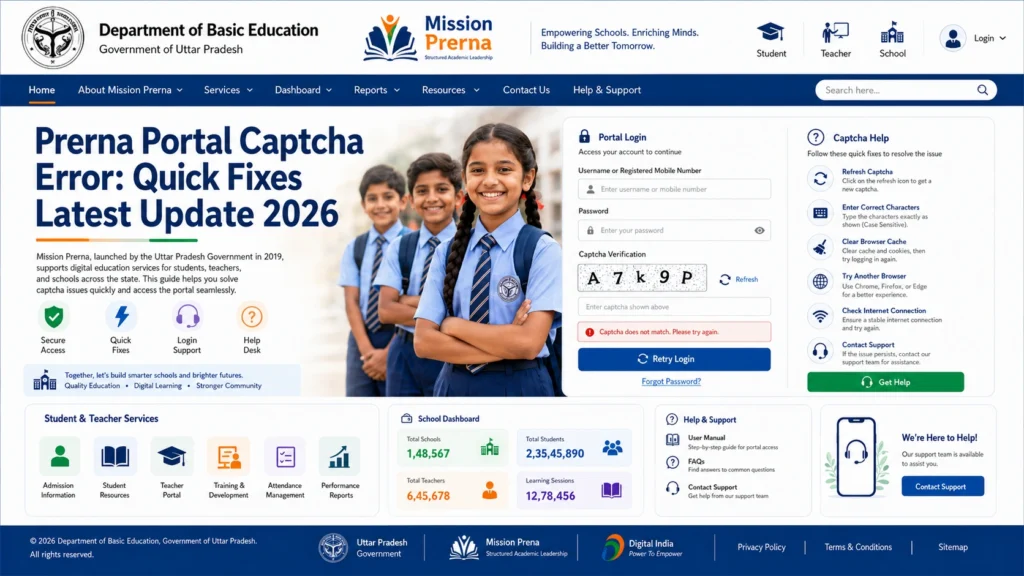
Refresh Captcha
Click the refresh button beside the captcha box to generate a new code. A new captcha often resolves most errors.
Use Audio Captcha
If the visual captcha is unclear, click the audio option. Listen carefully and type the letters or numbers as instructed.
Clear Browser Cache
Old cache or cookies can cause conflicts. Clear them in browser settings and reload the page.
Use a Different Browser or Device
Switch to Chrome or Firefox for better compatibility. If your current device has issues, try another phone or laptop.
Check Internet Connection
A stable network is essential. Switch between Wi-Fi and mobile data if necessary.
Advanced Tips to Prevent Captcha Issues
Update Your Browser Regularly:
Security scripts and captcha tools work best on updated browsers.
Disable Unnecessary Extensions:
Some browser extensions may block or interfere with captcha scripts.
Use Private/Incognito Mode:
Logging in via incognito mode can prevent cached conflicts.
Avoid Copy-Pasting Captcha:
Always type manually to prevent errors.
Try During Off-Peak Hours:
Access the portal early in the morning or late at night to reduce server load.
Implementing these practices reduces the chance of captcha errors in future logins.
Tips to Avoid Captcha Errors
FAQs
Conclusion
Captcha errors can be frustrating but are usually easy to fix. Simple steps like refreshing, using audio captcha, clearing cache, switching browsers, or following advanced tips can help you log in smoothly.
Following these strategies ensures you can access the Prerna Portal quickly and continue your work without delays.


