
Operation Kayakalp Entry on Prerna App: (Complete Guide 2026)
The Prerna App in Uttar Pradesh allows schools to manage student information and government programs digitally. One of its important features is Operation Kayakalp, which tracks and reports school cleanliness, hygiene, and sanitation measures under the state’s quality initiative.
If you are responsible for filling Operation Kayakalp data for your school, this guide will help you complete entries correctly and avoid mistakes.

Why Operation Kayakalp Entry is Important
Ensures school hygiene compliance:
Monitors cleanliness standards in classrooms, toilets, kitchens, and drinking water facilities.
Government reporting:
Helps the education department evaluate the school environment and award recognition.
Transparency and accountability:
Accurate data reflects the real status of hygiene measures in schools.
Supports student health and well-being:
Clean and safe schools reduce illness and improve attendance.
Record management:
Schools maintain proper documentation for inspections, audits, and awards.
Keeping Operation Kayakalp entries updated ensures your school is recognized for hygiene standards and can receive awards or certifications.
You can also read: Prerna App GPS Location Error: Complete Solution Guide 2026
Step-by-Step Guide for Operation Kayakalp Entry
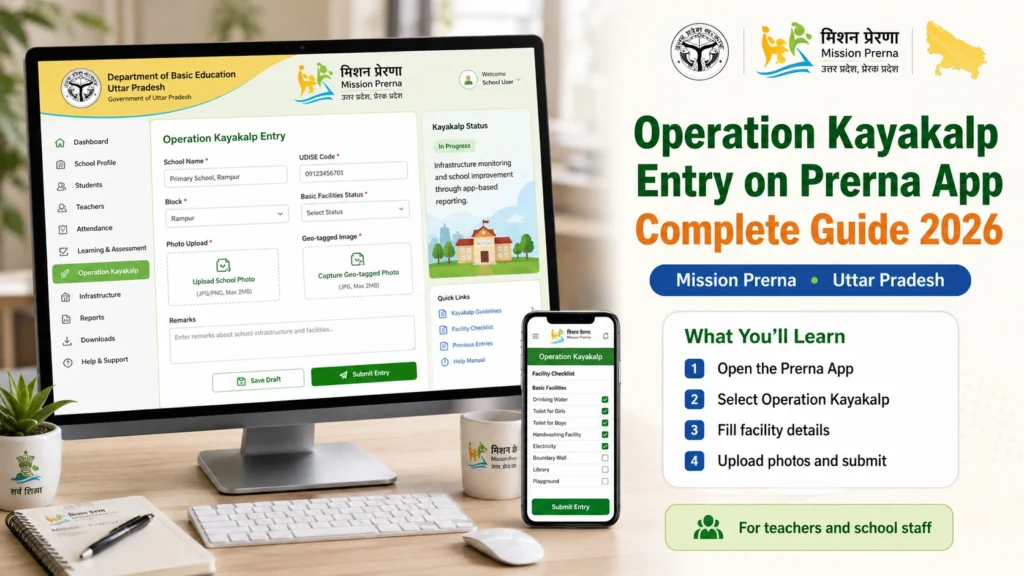
Step 1: Log in to Prerna App
Open the Prerna App on your device.
Enter your school credentials (username, password, or OTP).
Ensure your internet connection is stable to avoid login errors.
Step 2: Navigate to Operation Kayakalp Section
On the dashboard, tap “Operation Kayakalp” or “Kayakalp Entry”.
The section will display the different criteria and forms required for submission.
Step 3: Select School and Date
Choose your school and the relevant date for which the entry is being made.
Make sure the date matches the day the cleanliness inspection or measures were performed.
Step 4: Fill Cleanliness and Hygiene Details
Mark all areas inspected, such as classrooms, toilets, playground, kitchen, and drinking water points.
Fill in any required data on maintenance, repairs, sanitation practices, or cleaning frequency.
Step 5: Upload Supporting Documents or Photos (if required)
Upload pictures or scanned documents showing the status of hygiene measures.
Ensure files are clear and meet the size requirements specified in the app.
Step 6: Verify and Submit Entries
Review all the data carefully before submitting.
Tap Submit or Save. Wait for confirmation that the entry has been recorded.
Step 7: Logout
After completing submission, log out to secure your account.
Regularly updating your login credentials ensures account safety.
Common Mistakes to Avoid
Double-check all entries before submission to avoid discrepancies and ensure smooth reporting.
Quick Tips for Smooth Operation Kayakalp Entry
Troubleshooting Table for Operation Kayakalp Entry
| Problem / Issue | Possible Cause | Solution / Fix |
|---|---|---|
| App not opening | Outdated app or server busy | Update or reinstall app, try during off-peak hours |
| Unable to log in | Wrong credentials or OTP expired | Check username/password, request new OTP |
| Entry not saving | Poor internet or server error | Use stable internet, refresh app, retry submission |
| Missing sections in checklist | Incorrect navigation | Reopen the form, ensure all sections are selected |
| Upload fails | File format or size issue | Use allowed file types and size, retry upload |
FAQs
Conclusion
Operation Kayakalp entry in the Prerna App ensures schools maintain hygiene standards and comply with government quality initiatives. Following the step-by-step process carefully, verifying entries, and submitting on time will make the process smooth and reliable.
Keeping data accurate benefits students, staff, and the school while supporting government monitoring programs.


