
Prerna Portal Bank Data Upload: Full Process (Update 2026)
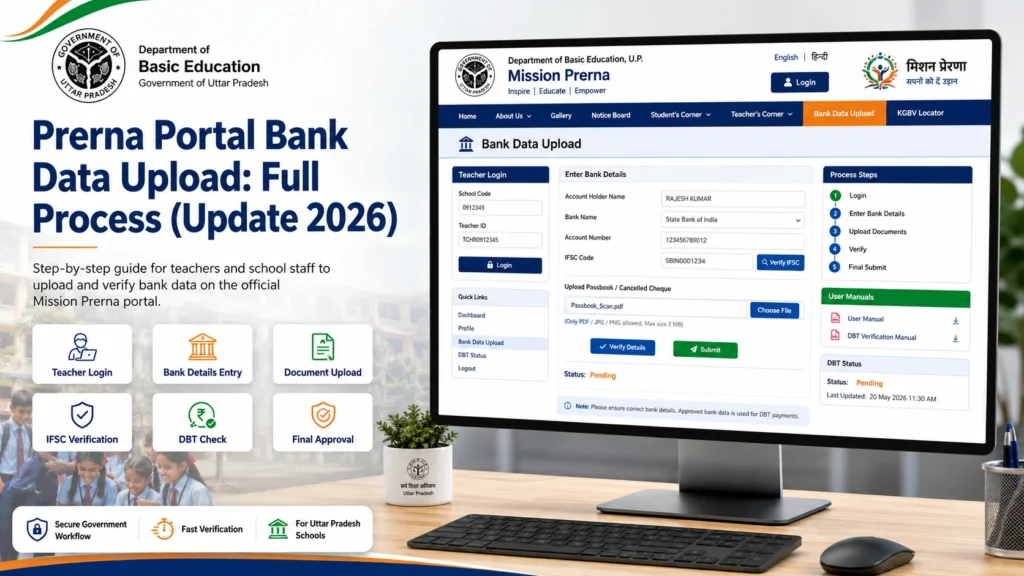
Prerna Portal Bank Data Upload is used by teachers to add or update student guardian bank details for DBT-related work. Teachers can access it from the official Prerna Portal by going to Bank Data Upload and then Teacher Login. After login, teachers can enter student details, guardian details, Aadhaar information, bank account number, IFSC code, and verify the student record.
The official teacher manual says the basic path is: visit prernaup.in, click Bank Data Upload, then click Teacher Login
What Is Prerna Portal Bank Data Upload?
Prerna Portal Bank Data Upload is a digital option on the Prerna UP portal. It helps school teachers submit or update student guardian bank details for Direct Benefit Transfer work.
In simple words, it helps the department collect the correct bank details so eligible students can receive government benefits through DBT.
The Prerna portal also has a separate Direct Benefit Transfer Portal, where users can log in with username, password, academic session, captcha, and SMS authentication. The DBT portal currently shows the 2026–27 academic session option.
You can also read: Prerna Portal OTP Not Received? Try These Fixes (Update 2026)
Who Can Use Bank Data Upload on Prerna Portal?
This option is mainly for authorized school teachers and staff.
Usually, teachers use it to:
The official teacher manual says that after login, teachers can enter guardian bank information for students of their school.
Prerna Portal Bank Data Upload Requirements
Before starting, keep these details ready:
Always check the details twice before submitting. A small mistake in account number or IFSC code can create payment problems later.
How to Do Bank Data Upload on Prerna Portal
Step 1: Open the Official Prerna Portal
Step 2: Click on Bank Data Upload
Step 3: Click on Teacher Login
Step 4: Enter Registered Mobile Number
Step 5: Verify OTP
Step 6: Open Student Guardian Bank Entry Form
Step 7: Select Session and Class
Step 8: Fill Student and Guardian Details
Now fill or check the student details.
You may need to check:
The DBT verification manual explains that after clicking the update button near a student name, teachers should fill the correct information and then update it.
Step 9: Fill Bank Details
Now enter the bank details carefully.
Check these fields:
Tip: Do not copy bank details from unclear photos. Use the passbook or official bank record.
Step 10: Verify Aadhaar Details
Step 11: Tick the Required Checkbox
Step 12: Click Update or Submit
Step 13: Verify the Student Record
Prerna Portal Bank Data Upload Through DBT Portal
Common Problems and Easy Fixes
- This usually happens when your mobile number is not registered or is not updated in the system.
- The teacher manual says that if the mobile number is not registered, teachers should contact 18001800666 to register the number.
- Try these fixes:
- Check mobile network
- Wait for 1–2 minutes
- Do not click OTP again and again
- Restart phone
- Check if the number is registered
- Try again after some time
- This happens when OTP is typed incorrectly or has expired.
- Enter the latest OTP only. Do not use an old OTP.
- Try this:
- Refresh captcha
- Type letters exactly as shown
- Use desktop mode on mobile
- Clear browser cache
- Try another browser
- Check the IFSC code from:
- Bank passbook
- Bank website
- Official bank branch record
- Do not guess IFSC codes.
- This happens when account number and confirm account number do not match.
- Type both numbers again slowly.
- This can happen due to spelling mismatch, wrong Aadhaar number, wrong gender, or incorrect date of birth.
- The DBT verification manual says teachers should correct student name, date of birth, SR number, and gender if Aadhaar information is incomplete or incorrect.
- आप जानकारी डाउनलोड भी कर सकते हैं, अगर आक इसकी जरूरत हो।
Prerna DBT App vs Prerna Portal Bank Data Upload
Many users get confused between the Prerna Portal and Prerna DBT app.
The Prerna DBT app is listed on Google Play as an app for teaching and para-teaching staff of Primary and Upper Primary Schools of the Basic Shiksha Department, Uttar Pradesh. It is related to student enrollment data submissions.
The PRERNA UTTAR PRADESH app is different. Google Play describes it as related to attendance monitoring, Mid Day Meal monitoring, and Operation Kayakalp data submissions.
So, for bank data upload, use the method your school or department tells you. Do not use random APK websites.
Important Tips Before Uploading Bank Data
Here are some simple but useful tips:
Prerna Portal Bank Data Upload Checklist
Before final submit, check this:
This small checklist can save a lot of time later.
Why Bank Data Upload Is Important
Bank data upload is important because wrong details can delay DBT benefits.
If account number, IFSC code, Aadhaar details, or guardian details are wrong, the student record may need correction. That is why teachers should upload data carefully and verify every field before final submission.
Good data means fewer rejected records and fewer correction requests later.
Safety Warning
Do not enter Prerna login details on fake websites.
The official Prerna site states that it belongs to the Department of Basic Education, Government of Uttar Pradesh, and is managed by UPDESCO.
Also, never share:
Use these details only on the official portal
FAQs
Conclusion
Prerna Portal Bank Data Upload is an important process for teachers in Uttar Pradesh. It helps update student guardian bank details for DBT-related work. The main thing is to use the official portal, enter details carefully, verify Aadhaar where required, and check every bank field before submitting
A small mistake in name, IFSC code, Aadhaar details, or account number can delay the process. So take your time, follow the correct steps, and keep records safe.


